The collection report details the payments collected at your clinic on a specified day. In this article, we will explain how to access and filter the collection report.
The collection report is crucial for managing your clinic. To access this page, click on the "Reports" icon on the left side.
NOTE: If your administrator has not granted you the necessary permissions, this section will not be visible to you.
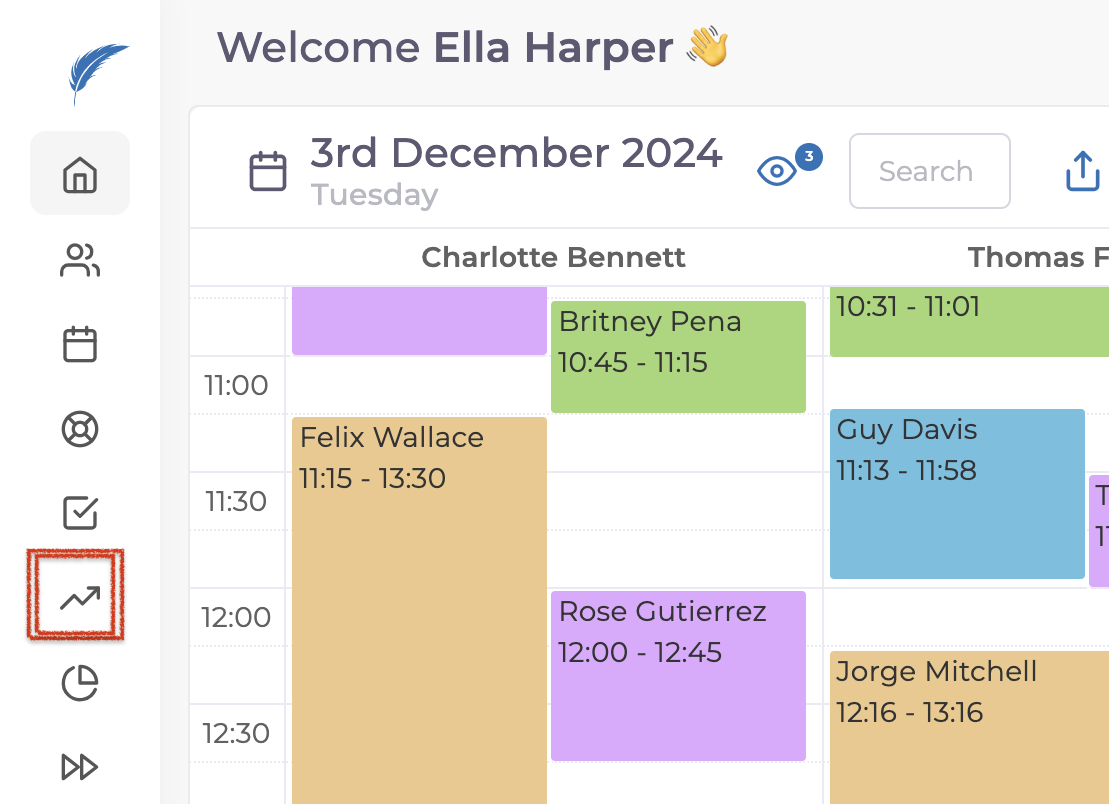
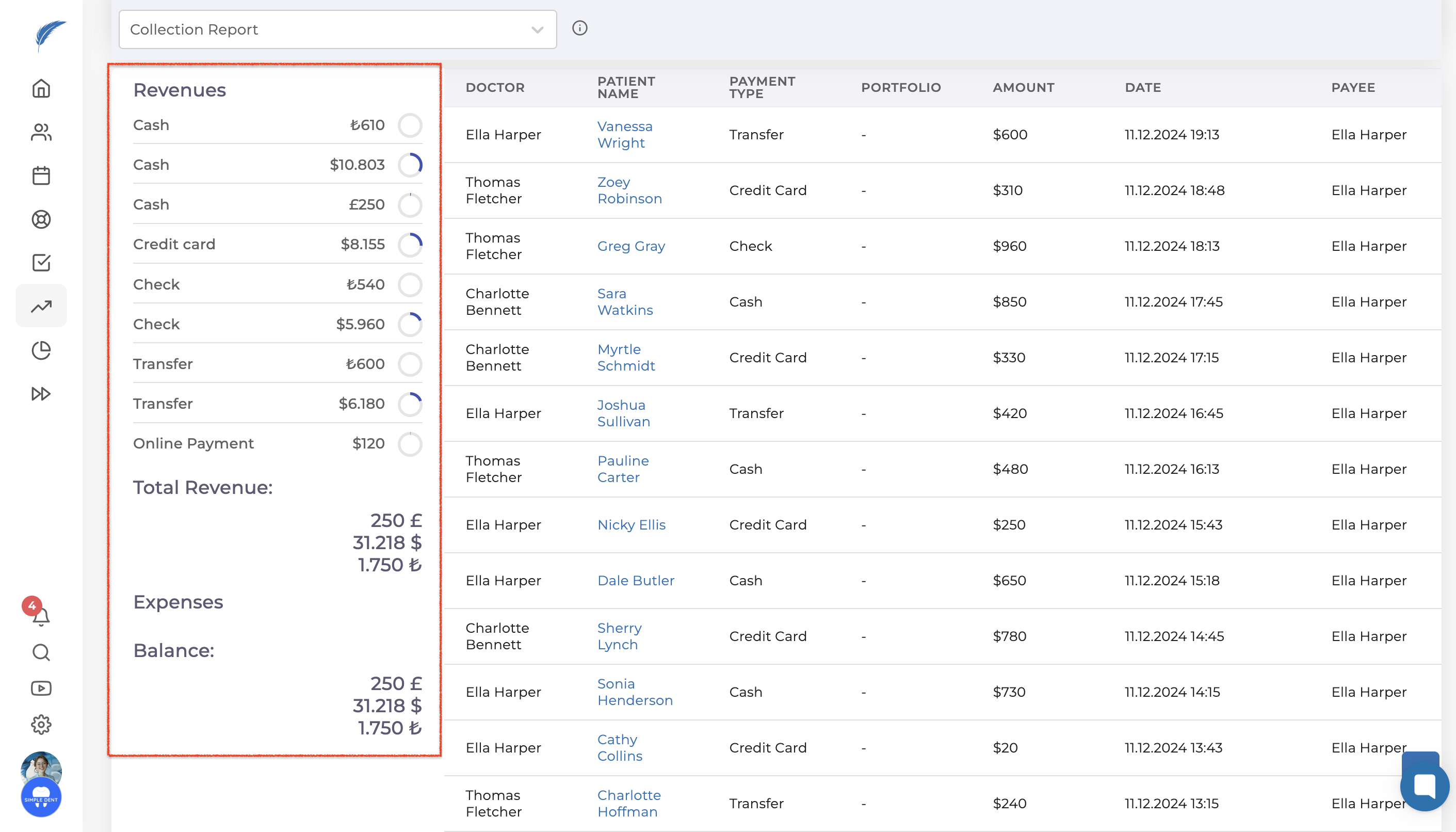
When you click on it, you will be redirected to a new page. On this page, the collection report report for today will display all doctors and payment types selected by default. In this screen, you can see details of your patient's payments, including which doctor received the payment, the method of payment, the amount paid, and the date and time when the payment was received by whom.

In the bottom left section, the totals for payment methods and the grand total are displayed. The subtotals will also adjust according to your filters.
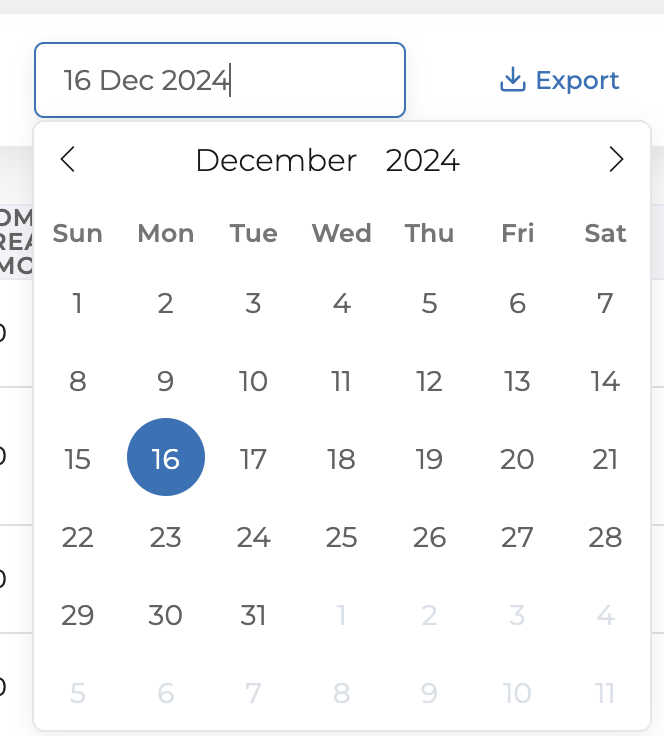
From the top left section, you can change the date range and generate reports for specific days. To do this, simply set the start and end dates in the date field.
You can also add different filters sucha s doctor and payment method from filters button.

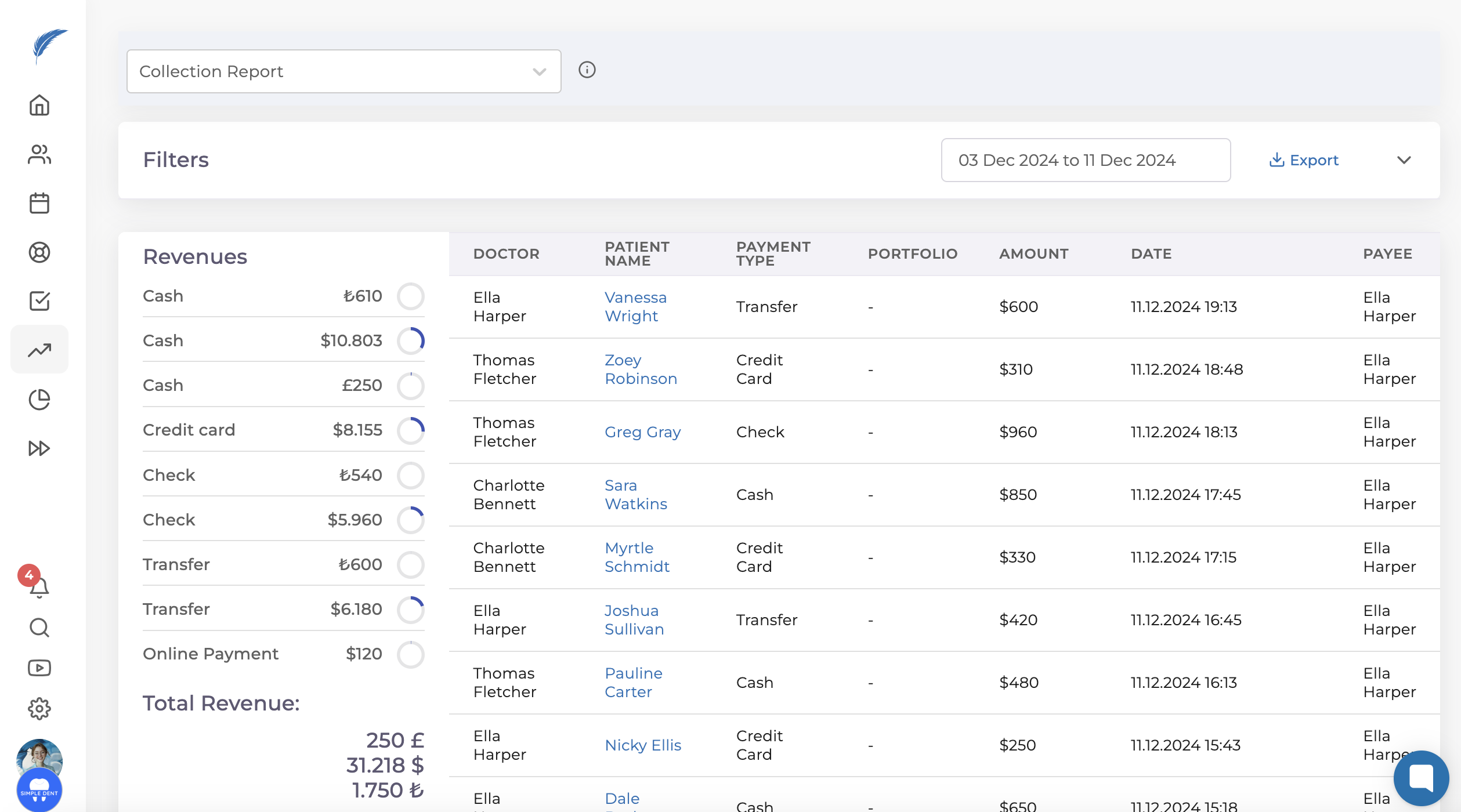
You can create the collection report with the filters you desire as explained above. Each report you generate can be saved as an Excel file using the "Export" button on the left side, and you can also print it if needed.

In this article, we discussed how to generate and filter the collection report.
You can also explore our other articles in the knowledge base for more detailed information about our application. If you need help with different topics, click the live support button at the bottom right to start a chat with us.